
How to Make Printable Coloring Pages with AI (Free, Step by Step)
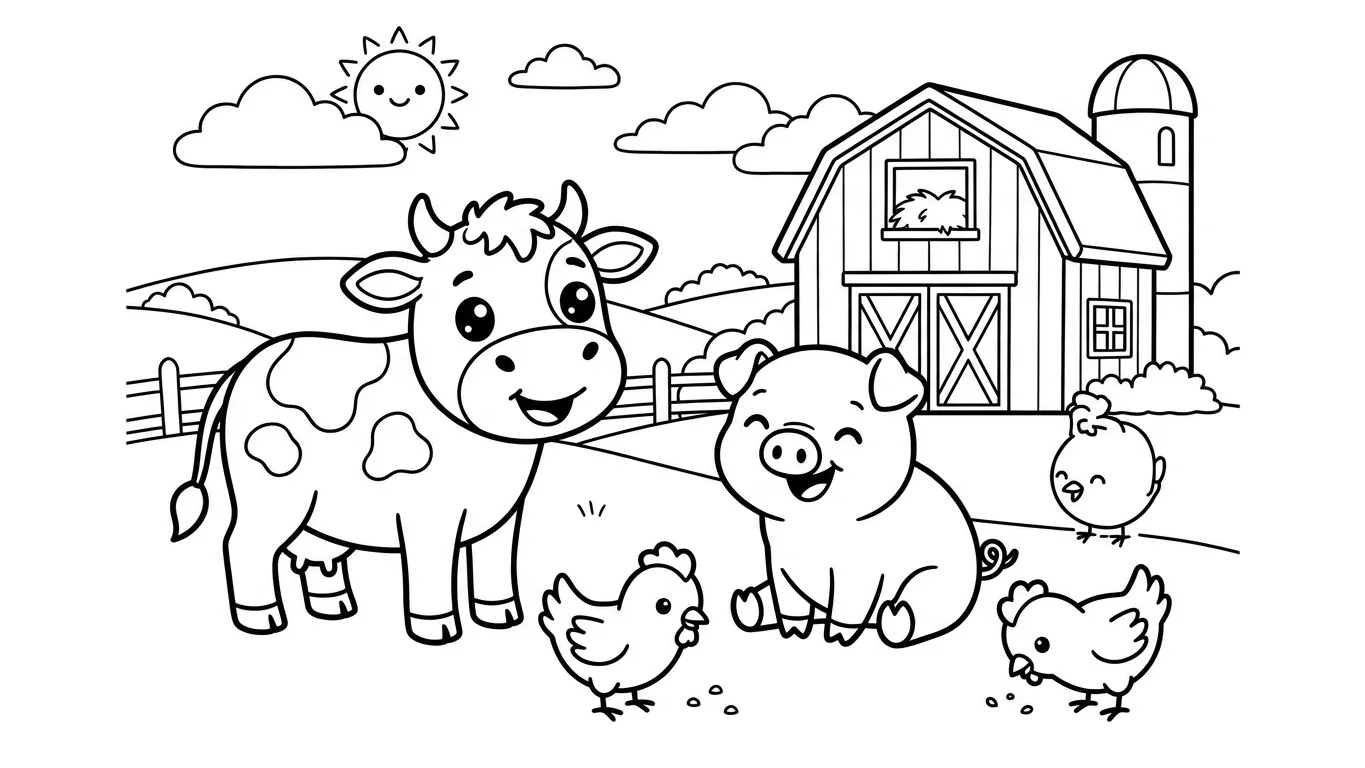
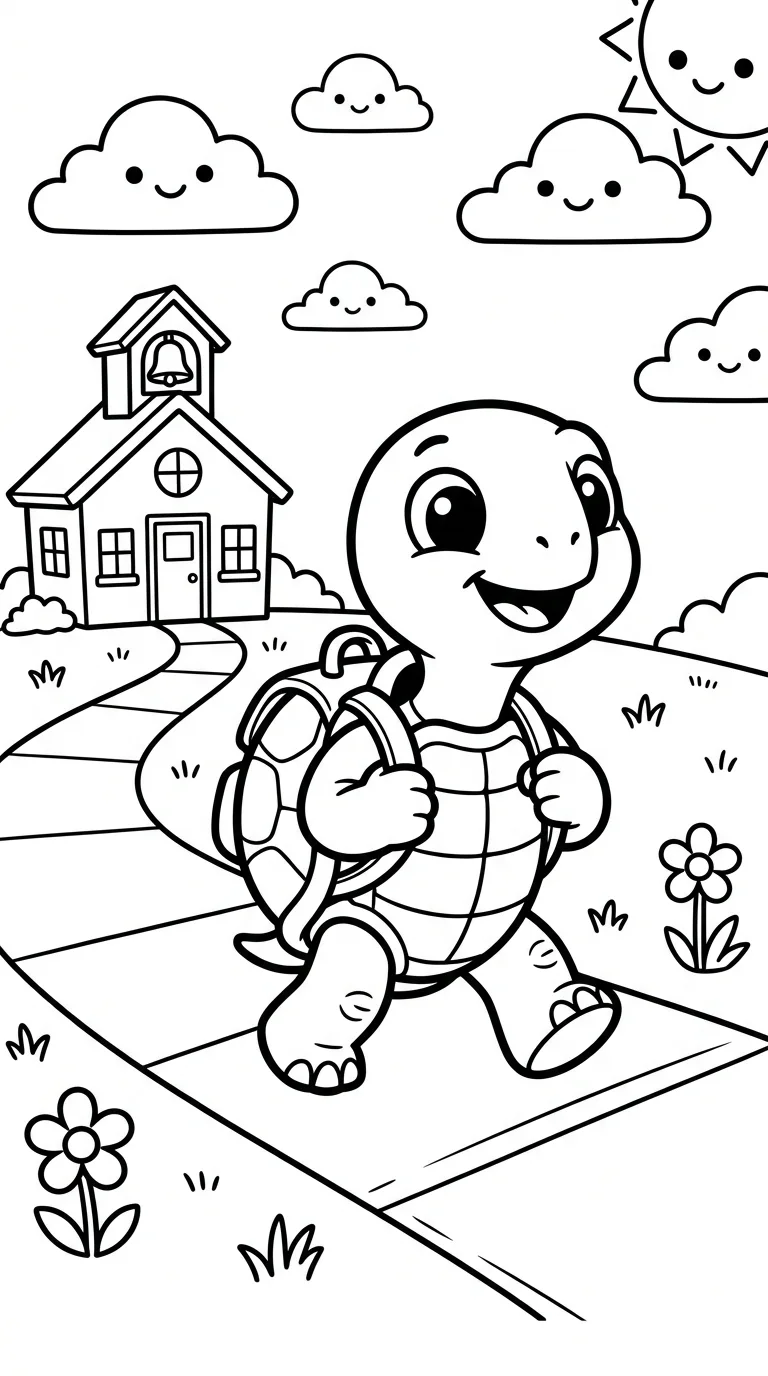
Store-bought coloring books run out of pages fast, and the free sheets online are often the same twenty cartoons. With an AI coloring page generator you can make a page about *exactly* what your kid is into this week — a turtle going to school, a fire truck, their dog — in about a minute.
This guide covers what actually makes a good coloring page, how to describe one, and how to print it so it looks crisp.
What makes a coloring page "good"
Before writing any prompt, it helps to know what you're aiming for. A printable coloring page works when:
- ●Lines are thick and closed. Small hands need clear borders to color inside. Gaps in outlines make crayons "leak".
- ●There's no shading or gray. Gray areas print as muddy smudges and there's nothing to color.
- ●Areas are big enough for the age. A 3-year-old needs a few large shapes; a 10-year-old enjoys lots of small ones.
- ●One clear subject. Busy scenes look impressive on screen but are frustrating to color.
Our coloring page generator is set up to follow these rules automatically, so your job is mostly to describe the picture.
Step 1: Describe one subject doing one thing
The single biggest improvement is to give the subject an action and a place. Compare:
- ●"dinosaur" → a generic dinosaur floating on white
- ●"a friendly dinosaur eating leaves next to a small volcano" → a scene a child wants to color
A simple formula that works: who + what they're doing + where.
Step 2: Pick the difficulty for the child's age
The generator has three levels. In practice:
| Level | Best for | What you get |
|---|---|---|
| Simple | Ages 2–5 | Few large shapes, extra thick lines, almost no background |
| Medium | Ages 6–9 | A main subject plus a simple scene |
| Detailed | 10+ and adults | Many small areas and patterns |
If you're unsure, start with Simple. It's easier to add detail on the next try than to rescue a page that's too fiddly.
Step 3: Choose the page orientation
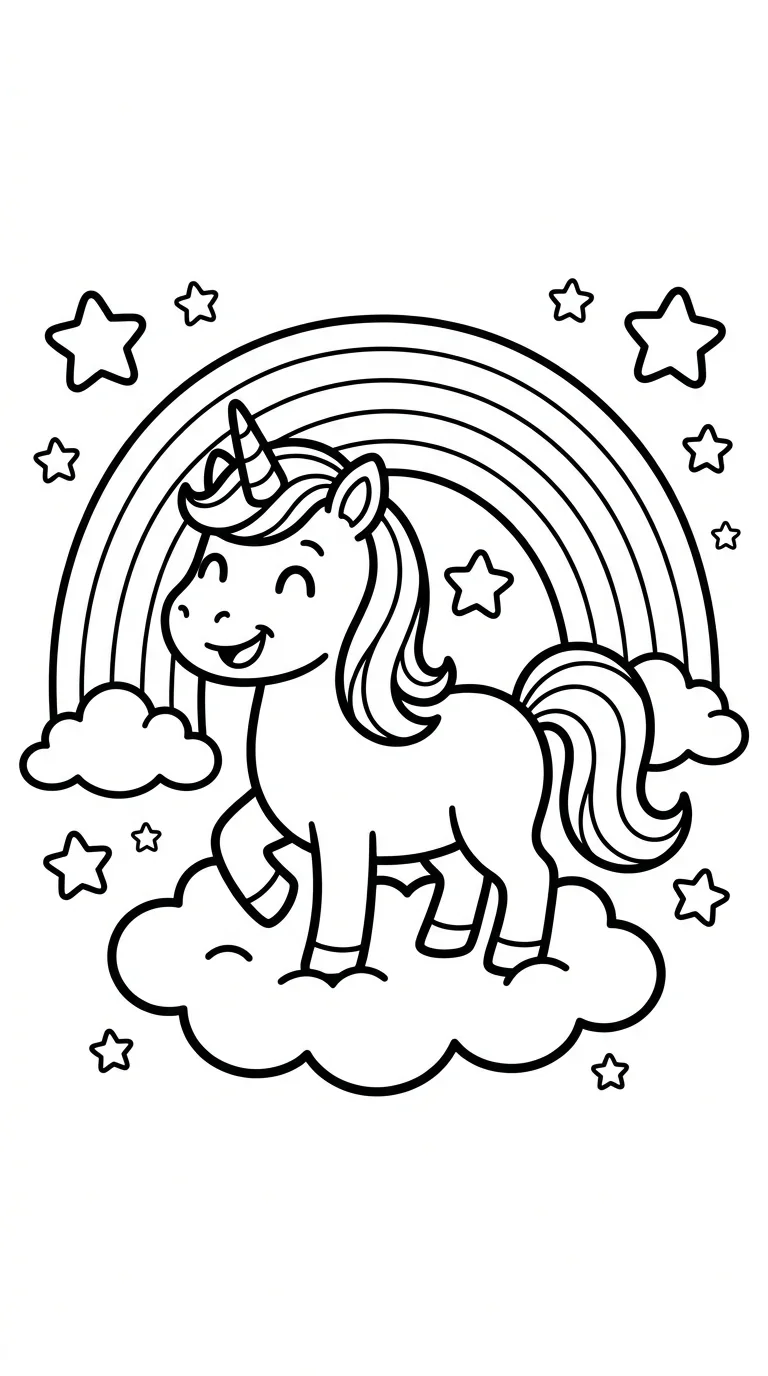
- ●Portrait (9:16) is the best default — it fills a standard sheet and keeps the whole drawing in frame.
- ●Landscape (16:9) can work for wide scenes like a farm, but check the edges: sometimes part of the drawing gets cut off. If that happens, switch to Portrait.
Step 4: Print it so it looks sharp
A few print settings make a big difference:
- 1Use the Print button under your image — it fits the picture on one page with a small margin.
- 2In the print dialog, choose A4 (most of the world) or US Letter (US and Canada).
- 3Set Scale: Fit to page so nothing gets cut off.
- 4Print in black & white / grayscale to save colored ink.
- 5Use slightly thicker paper (100–120 g/m²) if kids use markers — regular printer paper lets them bleed through.
Ideas that kids actually ask for
If you're stuck, these themes come up again and again:
- ●Animals doing human things: a cat baking a cake, a bear riding a bike
- ●Vehicles: fire trucks, diggers, trains, rockets
- ●Their own pet, described by breed and something it loves
- ●Seasons: a snowman building a snowman, kids jumping in autumn leaves
- ●Jobs: a doctor, a chef, an astronaut, a farmer
What AI still gets wrong
Being honest about the limits saves you time:
- ●Hands and fingers can come out odd, especially on the Detailed level. Regenerate or describe a pose where hands are hidden ("holding a balloon behind its back").
- ●Text inside the picture is unreliable. If you want a name on the page, write it by hand after printing.
- ●Famous characters won't look like the original and shouldn't be the goal anyway — make your own characters instead.
Using pages in a classroom
Teachers can generate a themed set in one sitting: pick a topic (say, "ocean animals"), make five or six pages at the Medium level, and print a stack. Pages are free to use for lessons and activities.
Ready to try? Open the free coloring page generator, type your idea, and you'll have a printable page in about a minute.